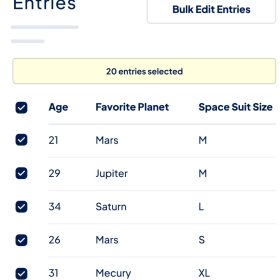

Inline Editing is the best way to quickly make changes to Gravity Forms form entries. You don’t need to edit each entry individually. Instead, just change the entry values to what you want, and you’re done—without ever seeing a full Edit Entry form.
This is EXACTLY the same product as distributed by the developer. Sales Page
The GravityView Inline Edit plugin is a specialized add-on for Gravity Forms that allows you to update entry data directly from your website’s front end or the WordPress admin dashboard without opening individual entries.
Key Features
-
Click-to-Edit: Simply click on a field value (highlighted with a dotted underline) to open a small edit box, change the data, and save instantly.
-
Column Mode (Bulk Editing): By clicking a column header, you can toggle the entire column into edit mode. This is perfect for updating statuses or dates across dozens of entries at once.
-
Front-End Integration: When used with GravityView, it allows your site visitors (with the right permissions) to edit data directly within a Table or List view.
-
Field Support: It supports all “Standard” Gravity Forms fields and most “Advanced” fields, including:
-
Text, Paragraph, Dropdown, Checkboxes, and Radio Buttons.
-
Name, Date, Time, Phone, Address, Website, and Email.
-
File Uploads: You can even replace or add files via the inline interface.
-
-
Real-time Validation: It respects the validation rules of your original form (e.g., required fields or email formats) to ensure data stays clean.
How to Enable It
1. In the WordPress Admin (Backend)
To edit entries quickly from the Gravity Forms “Entries” screen:
-
Go to Forms > Settings > Form Options.
-
Check the box “Enable Inline Edit” and save.
-
Navigate to your Entries list and click the “Toggle Inline Edit” button at the top right.
2. In a GravityView (Frontend)
To allow users to edit data on the live site:
-
Open your View Editor.
-
Scroll down to View Settings.
-
Under the GravityEdit (or Inline Edit) tab, check “Enable Inline Edit”.
-
Update the View. An “Inline Edit” toggle will now appear above the table on your website.
- Categories: WordPress Plugins
- Tags: GravityView